Enable ELMO Note Permissions
The first time you open ELMO Note, you will be asked to enable "Accessibility Permission" and "Storage Permission". 
1. Press the Setting button next to Accessibility.
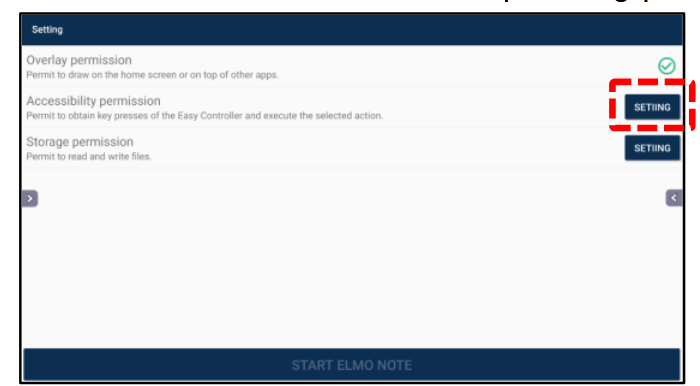
If you accidentally skip this process the first time you launch ELMO Note, please restart your ELMO Board and ELMO Note.
1. Press the Setting button next to Accessibility.
2. Select the permission box for ELMO Note.
3. Enable it using the button in the top right corner of the screen.
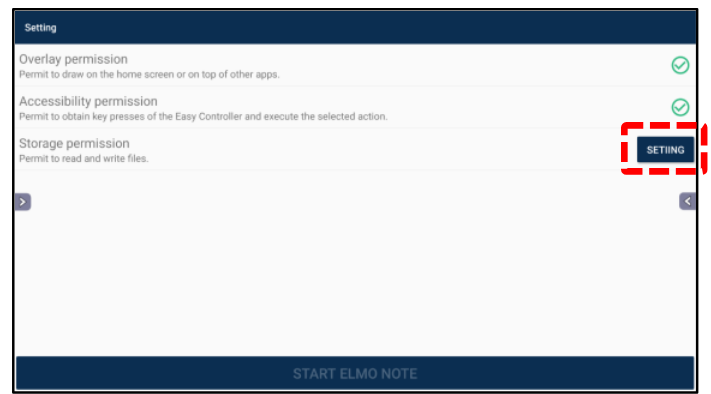
4. Return and press the Setting button next to Storage.
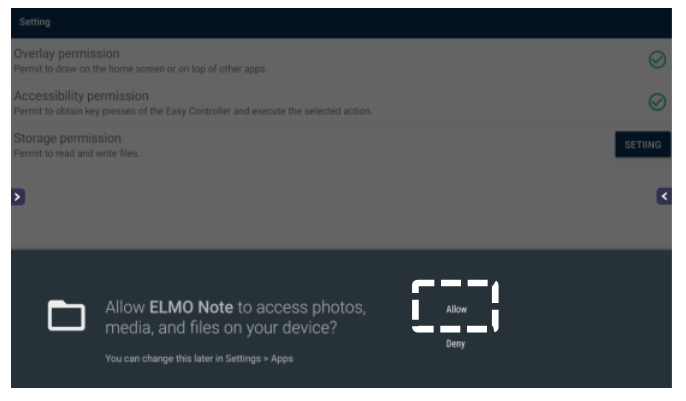
5. Press Allow.
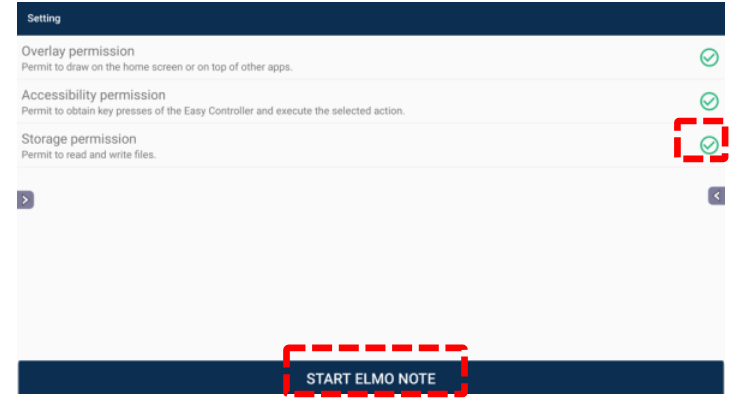
6. Press Start ELMO Note to begin.
Related Articles
Connecting your ELMO Camera to an ELMO Board - HDMI and VGA
1. Locate the video input ports available on your ELMO Board and compare them to the video out ports on your ELMO camera. The ports will be labeled as 'OUT' on your camera. For exact port locations, please refer to your product manual. ...ELMO Board R2 QuickStart
PDF Download available at bottom of article.Connecting your ELMO Camera to an ELMO Board - USB Direct
1. Locate the USB ports available on your ELMO Board and on your ELMO camera. For exact port locations, please refer to your product manual. [EXAMPLE ELMO PRODUCTS; PORTS MAY VARY] 2. ...Connecting your Computer to an ELMO Board
1. Identify the video output ports available on your computer and find the matching input on your ELMO Board. [EXAMPLE PRODUCTS; PORTS MAY ...Hidden WiFi on ELMO Board R2
Please follow this guide to connect your ELMO Board to a hidden network. 1. Open App list and locate advanced settings. 2. Type in ' wifi_settings ' and press Run. If WiFi is not already enabled, you can enable it now. 3. Scroll down to Add a ...