TT-12W Black bars on side of screen when connected to Image Mate computer app
If your Image Mate computer app is connected to a TT-12W and there are black bars on the side of the screen, it is likely that your camera's internal rotation feature was engaged. When the camera rotates the picture 90° , black bars are added to the image to compensate for the change is aspect ration. Normally you can correct this by pressing the rotate button on the TT-12W directly a few times.
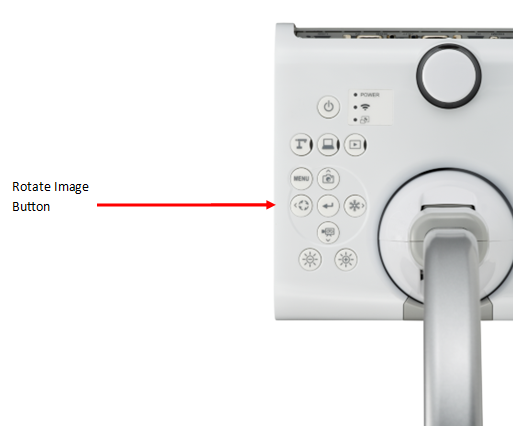
If you image is only rotating 180°, you may need to connect your camera to a display and change the rotation settings. By default the camera should rotate 90°.


If you image is only rotating 180°, you may need to connect your camera to a display and change the rotation settings. By default the camera should rotate 90°.
For help connecting your camera to a display: Connecting your Camera to a TV or Monitor or Connecting your Camera to a Projector
Related Articles
MO-2 and MA-1 Black bars on side of screen when connected to Image Mate computer app
If your Image Mate computer app is connected to a MA-1 or MO-2, and there are black bars on the side of the screen, it is likely that your camera's internal rotation feature was engaged. When the camera rotates the picture 90° , black bars are added ...TT-12W Product Support
Having trouble setting up your TT-12W document camera? Use this article to troubleshoot common issues and get answers to your questions! Troubleshooting Problem: Camera not recognized / No image from camera Solution: Change cable and/or input port. ...TT-12W Overview
Use this article to learn more about your new ELMO device. For troubleshooting, please see our device help page. Package Contents Supported Software Windows 10 / 11 - Image Mate 5 - ELMO Interactive Toolbox for Windows - Image Mate + Cloud MacOS ...TT-12iD and TT-12i Troubleshooting
Having trouble setting up your TT-12iD / TT-12i document camera? Use this article to troubleshoot common issues! Issue: Document Camera not recognized by computer. Most Common Cause: Cable issue. Solution: Connect camera to your computer using the ...TT-12i and TT-12iD USB Mode
The TT-12i and TT-12iD must have the USB Mode Setting set to “UVC” to be recognized natively by a computer Operating System. During this process ensure the USB cable is NOT connected to the camera as it may cause the setting change to fail. 1. ...